How to Download Samsung Good Lock
Samsung Galaxy phones already offer plenty of customization options, but if you want to take that customization to the next level, Samsung Good Lock is one of the best tools available.
Good Lock is a collection of Samsung apps and modules that lets you customize different parts of your Galaxy phone, including the lock screen, home screen, Quick Panel, navigation, keyboard, sound controls, and more. Samsung also notes that the available features can vary depending on the Galaxy device and software version.
In this guide, we will explain what Samsung Good Lock is, why you should use it, how to install it when it is not available in your Galaxy Store or Play Store, and some of the useful things you can customize with it.
What Is Samsung Good Lock?
Samsung Good Lock is a customization suite made specifically for Samsung Galaxy devices.
Instead of giving you just one customization setting, Good Lock provides different modules, with each module designed for a particular part of your phone. You can install and use only the modules you actually need.
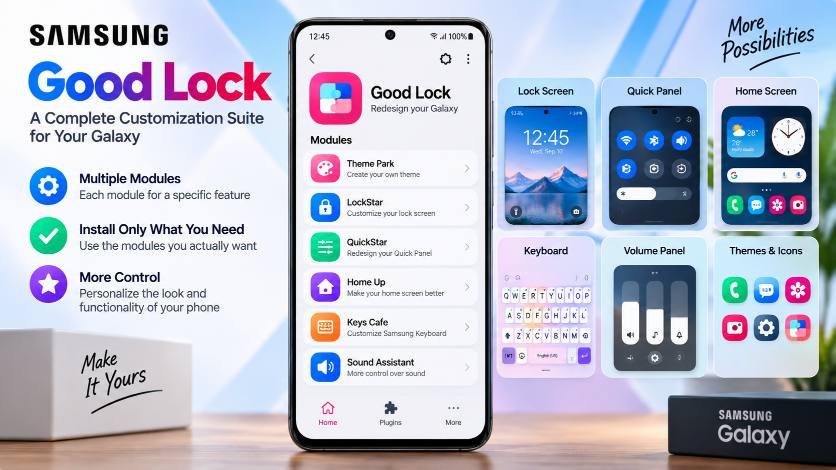
For example, you can use one module to customize your lock screen, another to change the Quick Panel, and another to create a more personalized keyboard or volume panel.
This makes Good Lock especially useful for Galaxy users who want more control over the look and functionality of their phone.
Why Should You Use Good Lock?
The biggest reason to use Good Lock is simple: it gives you much more control over your Galaxy phone.
With the default One UI settings, many customization options are limited. Good Lock unlocks additional settings that are not always available through the regular Settings app.
You can use Good Lock to:
- Personalize the appearance of your phone
- Customize the lock screen and Always On Display
- Change the Quick Panel and status bar
- Customize navigation and gestures
- Create custom themes and icons
- Modify keyboard appearance and layout
- Improve volume controls
- Add useful gestures and shortcuts
- Customize features for multitasking and gaming
Samsung says Good Lock is designed to personalize the Galaxy interface, improve productivity, and enhance the overall user experience.
How to Download Samsung Good Lock
Normally, the easiest way to download Good Lock is through the Galaxy Store or Google Playstore.
- Open the Galaxy Store/Playstore on your phone.
- Tap the Search icon.
- Search for Good Lock.
- Select the official Samsung Good Lock app.
- Tap Install.
- Once installation is complete, open the app and complete the initial setup.
After installing Good Lock, you can download or update different modules directly from inside the app.
What If Good Lock Is Not Available?
In some cases, Good Lock may not appear in your Galaxy Store or may not be available for your particular device or region. Samsung also states that Good Lock is available only in selected countries, and feature availability can vary by device and software version. In that situation, you can install the Good Lock APK file manually.
Step 1: Download the APK
Open the APK download link and download the Samsung Good Lock APK file to your phone.
Step 2: Turn Off Auto Blocker
If your Samsung phone has Auto Blocker enabled, it may prevent APK files downloaded from outside the Galaxy Store or Google Play Store from being installed.
To temporarily disable it, go to:
Settings → Security and privacy → Auto Blocker → Turn Off
The exact menu name or location may vary depending on your Galaxy model and One UI version. Samsung explains that Auto Blocker can block app installations from unauthorized sources.
Step 3: Install the APK
Once Auto Blocker is turned off:
- Open your Downloads folder.
- Tap the downloaded Good Lock APK file.
- Allow the required installation permission if prompted.
- Tap Install.
- Wait for the installation to finish.
- Open Samsung Good Lock.
For security, it is a good idea to turn Auto Blocker back on after completing the installation, especially if you do not regularly install apps from outside official app stores.
Conclusion
Samsung Good Lock is one of the best customization tools for Galaxy users who want more than the standard One UI settings.
You can use it to customize everything from your lock screen and Quick Panel to your keyboard, navigation, volume controls, gestures, themes, and multitasking experience.
The easiest option is to download Good Lock directly from the Galaxy Store. However, if it is not available on your device or in your region, you can use a trusted APK source and install it manually. Just remember that Samsung’s Auto Blocker may need to be temporarily disabled for an installation from outside an authorized app store, and it is recommended to enable the security feature again afterward.
With the right Good Lock modules, you can make your Samsung Galaxy phone feel much more personalized and truly your own.